
Inviting and Managing a Teacher
To manage your team, click Settings in the sidebar, then open the Teachers tab.

This is where you view, invite, and manage every teacher linked to your school. It works like class management, with the same table layout.

Inviting a teacher
Section titled “Inviting a teacher”-
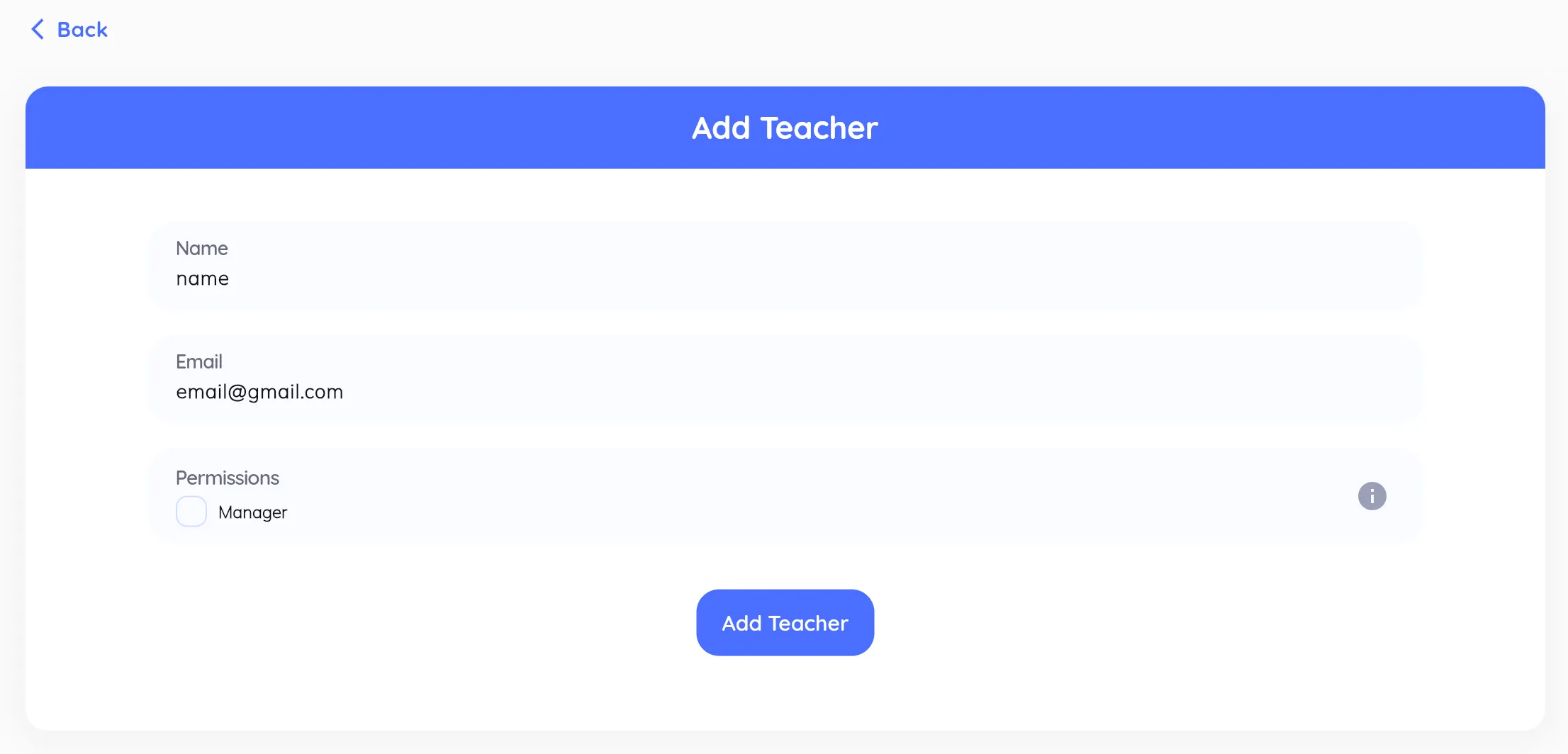
Click Add Teacher.

-
Enter the teacher’s name, surname, and email address.
-
To let them manage other teachers, classes, and pupils, tick Manager.
-
Click Add Teacher to send the invitation. They get an email with a link to join your school.
Editing a teacher
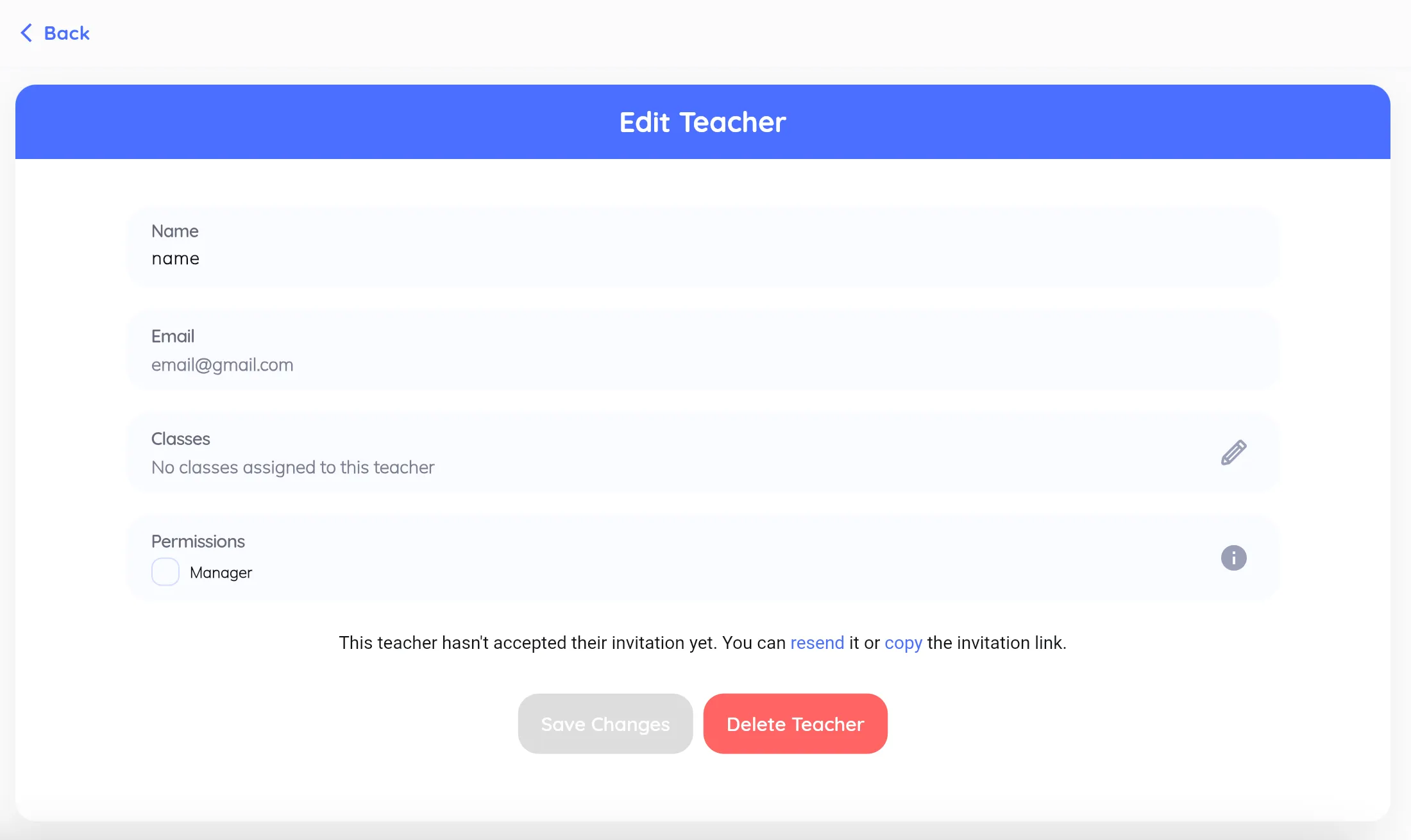
Section titled “Editing a teacher”Click a teacher in the list to open their details. From there you can:
- Update their name and surname
- Assign them to classes (click the pencil icon next to the Classes field)
- Toggle Manager permissions
- Remove the teacher
Pending invitations
Section titled “Pending invitations”A teacher who hasn’t accepted yet is marked as pending. You can:
- Resend the invitation.
- Copy the invitation link to send it yourself.
Next, the teacher needs to accept the invitation.