
Conducting Assessments
Reading Assessment Session
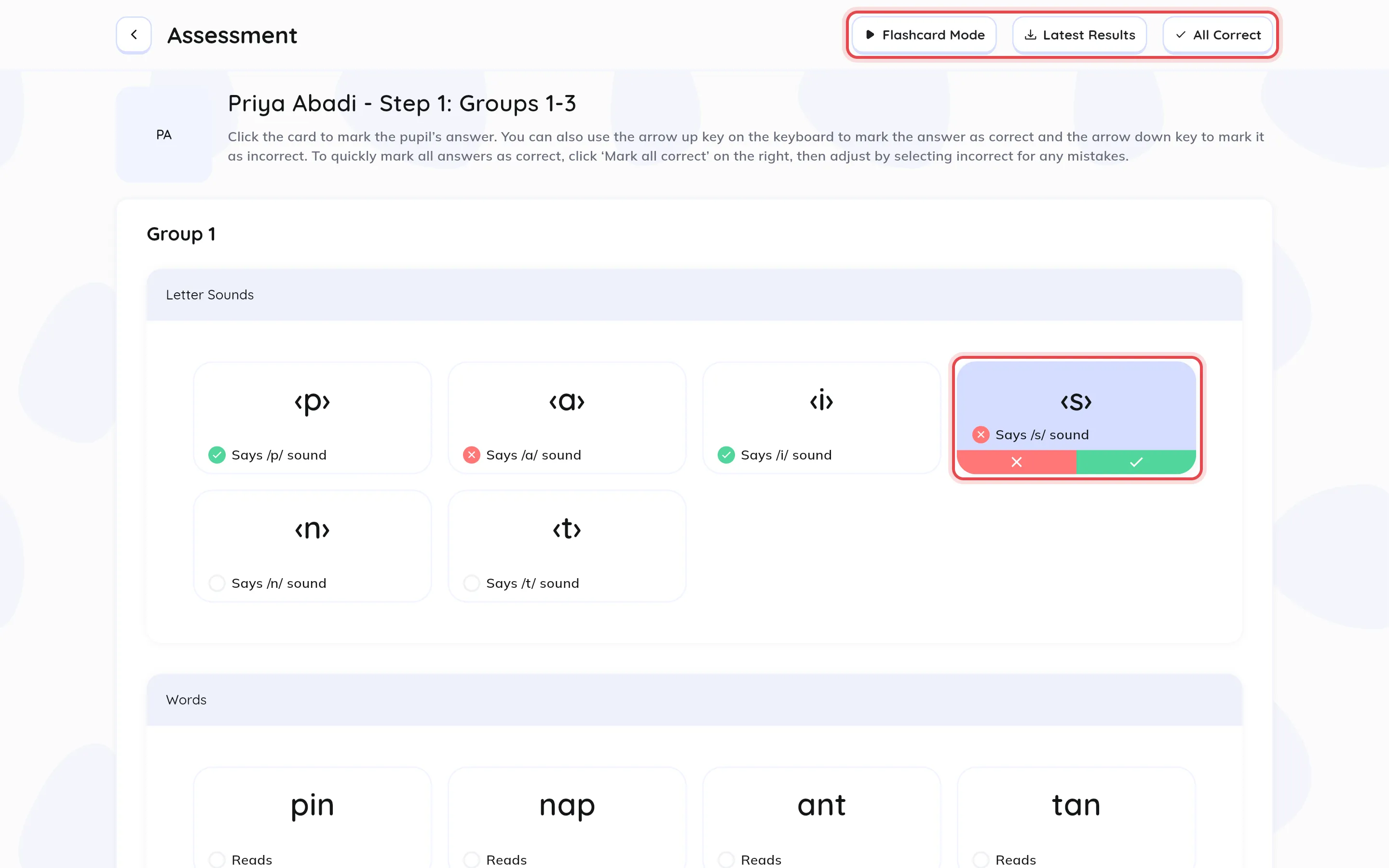
Section titled “Reading Assessment Session”Reading assessments open in the input view, with a card for each item, grouped by category.
Marking answers
Section titled “Marking answers”- Click a card, then mark it correct (tick) or incorrect (cross).
- Or use your keyboard: Up Arrow marks correct, Down Arrow marks incorrect, and both move on to the next item.
- Click Save & Finish at the bottom to save the assessment. If some items are still unmarked, you’ll be warned that the results may not be representative.
For Sentence Assessments
Section titled “For Sentence Assessments”- Click a word once to mark it as an error (red).
- Click it again to mark a self-correction (blue).
- Click a third time to clear it.
- Use Clear marks to start the sentence again.
Quick Grading Options
Section titled “Quick Grading Options”- All Correct: mark every item correct, then change any mistakes.
- Latest Results: load the pupil’s results from their previous attempt.
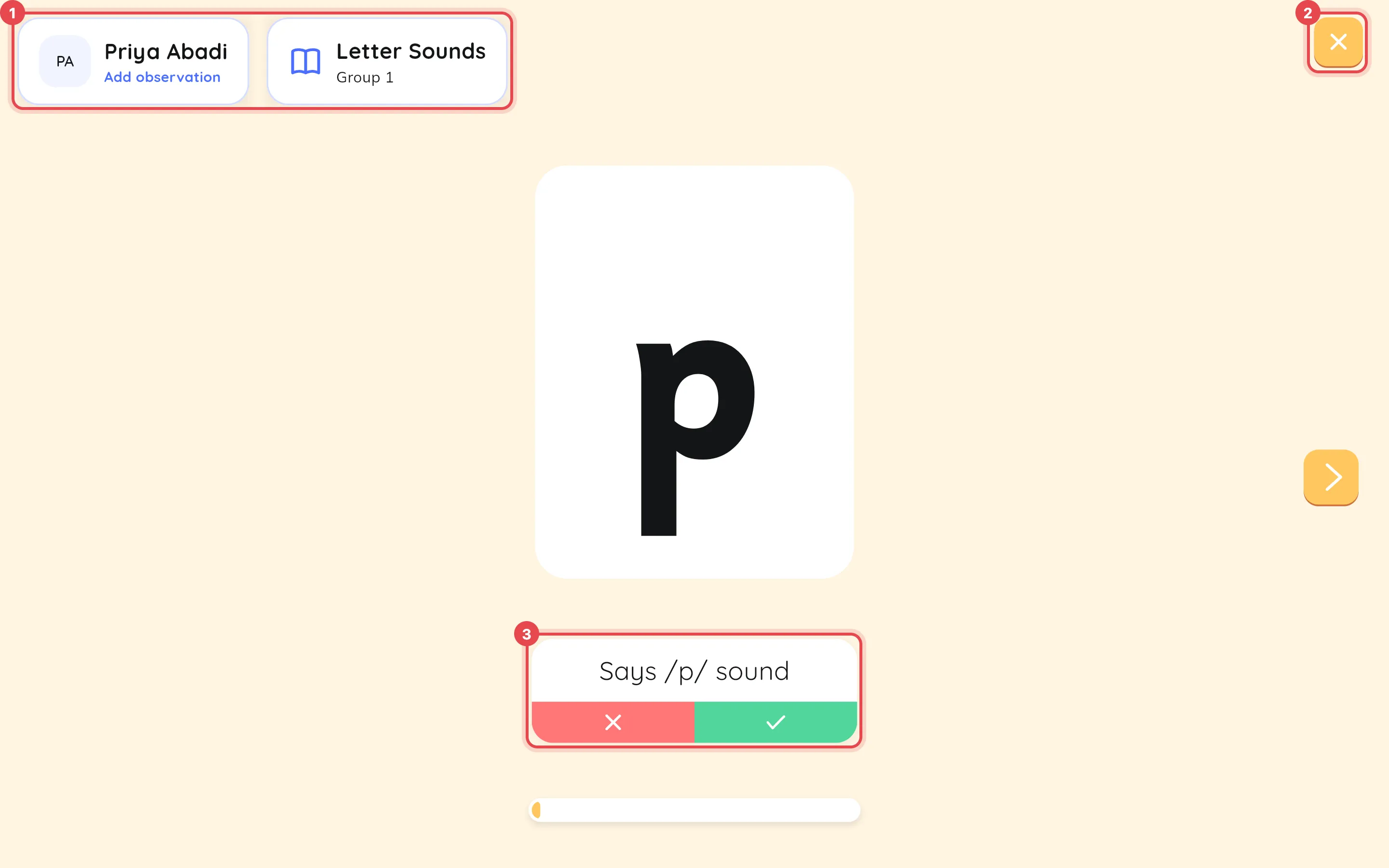
- Flashcard Mode: show the items full screen on a second device (see Flashcard Mode).
Writing Assessment Input
Section titled “Writing Assessment Input”Click Input Results to enter the pupil’s results from their written sheet.
- Input Results: mark each item correct or incorrect.
- Sentence Marking: for sentence assessments, mark errors word by word.
- Review Summary: check the category scores.
- Save & Finish: save the assessment.
All Correct and Latest Results work the same way as in reading assessments.