
Flashcard Mode
What is Flashcard Mode?
- Flashcard Mode allows you to conduct an assessment session using a second device (such as an iPad) that is logged into an account assigned to the same school.
- This is ideal for in-person assessment, letting you show flashcards to the pupil and mark answers in real time from a tablet or secondary device.
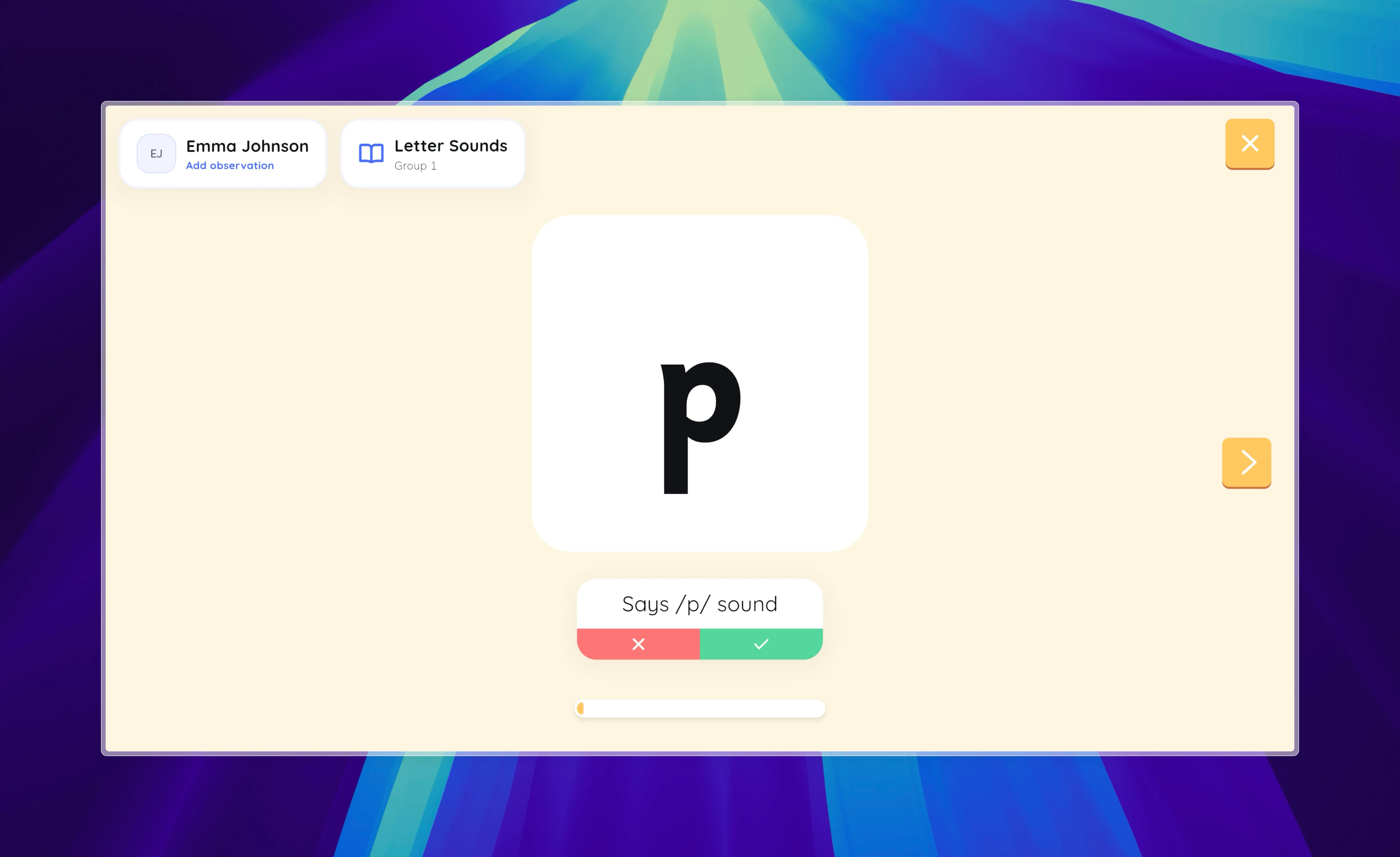
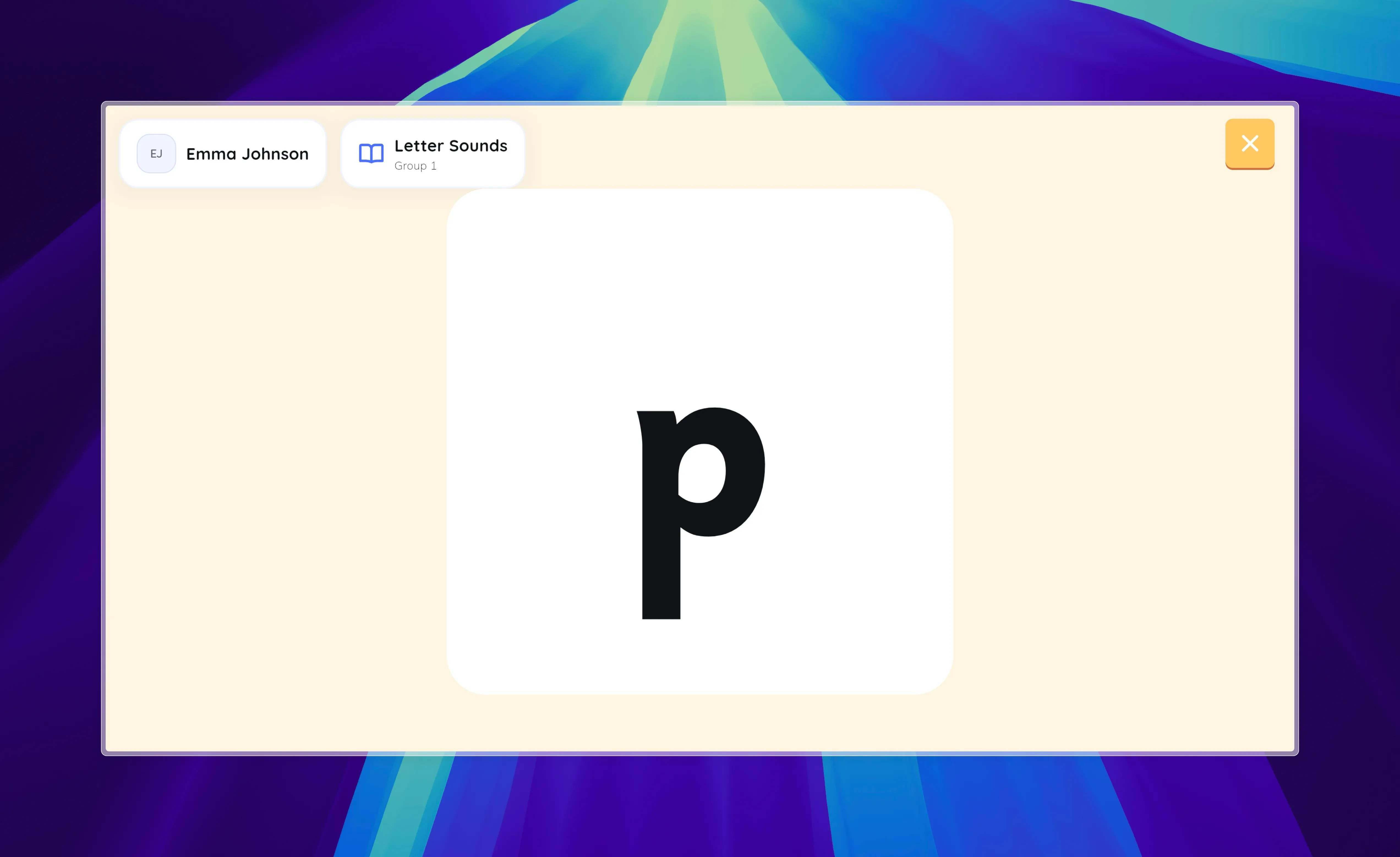
How to Use Flashcard Mode:
-
Start the Assessment:
-
On your main device, begin a Reading assessment as usual.
-
In the assessment input view, click the “Flashcard Mode” button to start a shared session.

-
-
Join the Session from Another Device:
-
On a second device (e.g., an iPad), log in with an account assigned to the same school.
-
If a session is in progress, you’ll see a notification or card “Assessment session in progress” with a “Join” button.

-
Tap “Join” to enter the session as a participant.
-
-
Conduct the Assessment:
- The session is synchronized between devices.
- You can show the flashcards to the pupil on the iPad and mark their responses.
- All navigation and grading actions are reflected in real time on both devices.
Key Points:
- Both devices must be logged into accounts assigned to the same school.
- Only one device can be the session “owner” (the one that started the session).
- This mode is ideal for face-to-face assessment, allowing the teacher to move freely and interact directly with the pupil.