
Analysing Pupil Data
To analyse pupil data effectively in Jolly Classroom, follow these steps:
Open the Pupils area
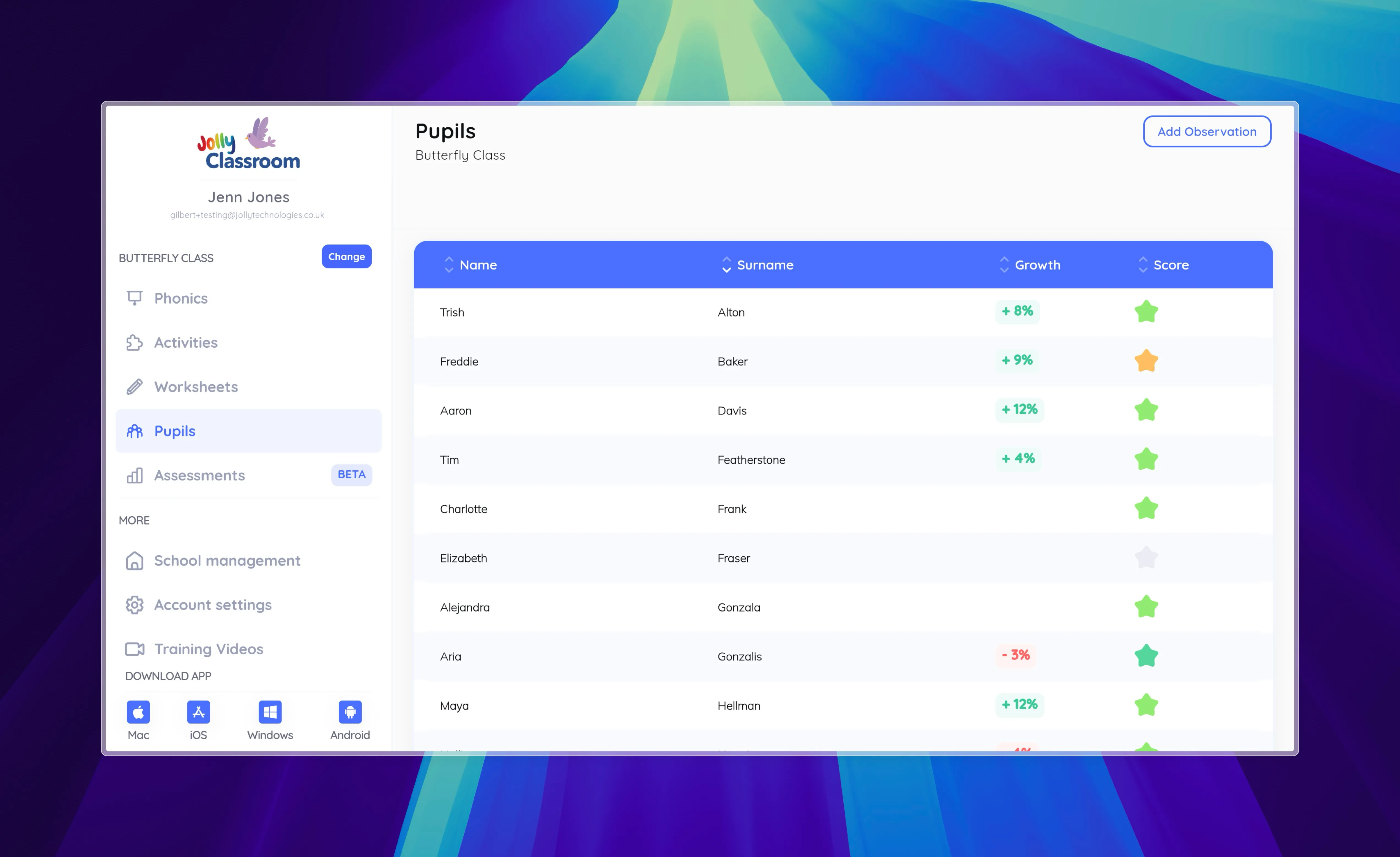
Section titled “Open the Pupils area”Open the Pupils area from your dashboard. This shows a full list of your class, so you can see all pupils at a glance.
Review Pupil Information
Section titled “Review Pupil Information”The list is alphabetized by last name by default, but you can adjust the order by clicking on the column names.

Check Growth
Section titled “Check Growth”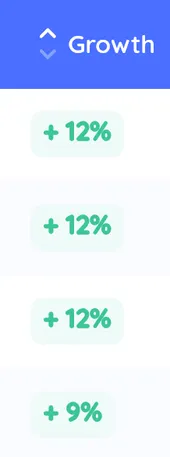
The ‘Growth’ column becomes useful once a pupil has been assessed at least twice, automatically comparing their latest assessment to their previous one. The ‘Score’ column displays a colored star to indicate each pupil’s overall progress, with dark green representing excellent progress and bright green signifying good progress.
Sort by Star Color
Section titled “Sort by Star Color”
You can sort the class by star color to quickly identify pupils who may need additional support. A gray star appears when a pupil has not yet completed both a reading and a writing assessment.
View Individual Pupil Data
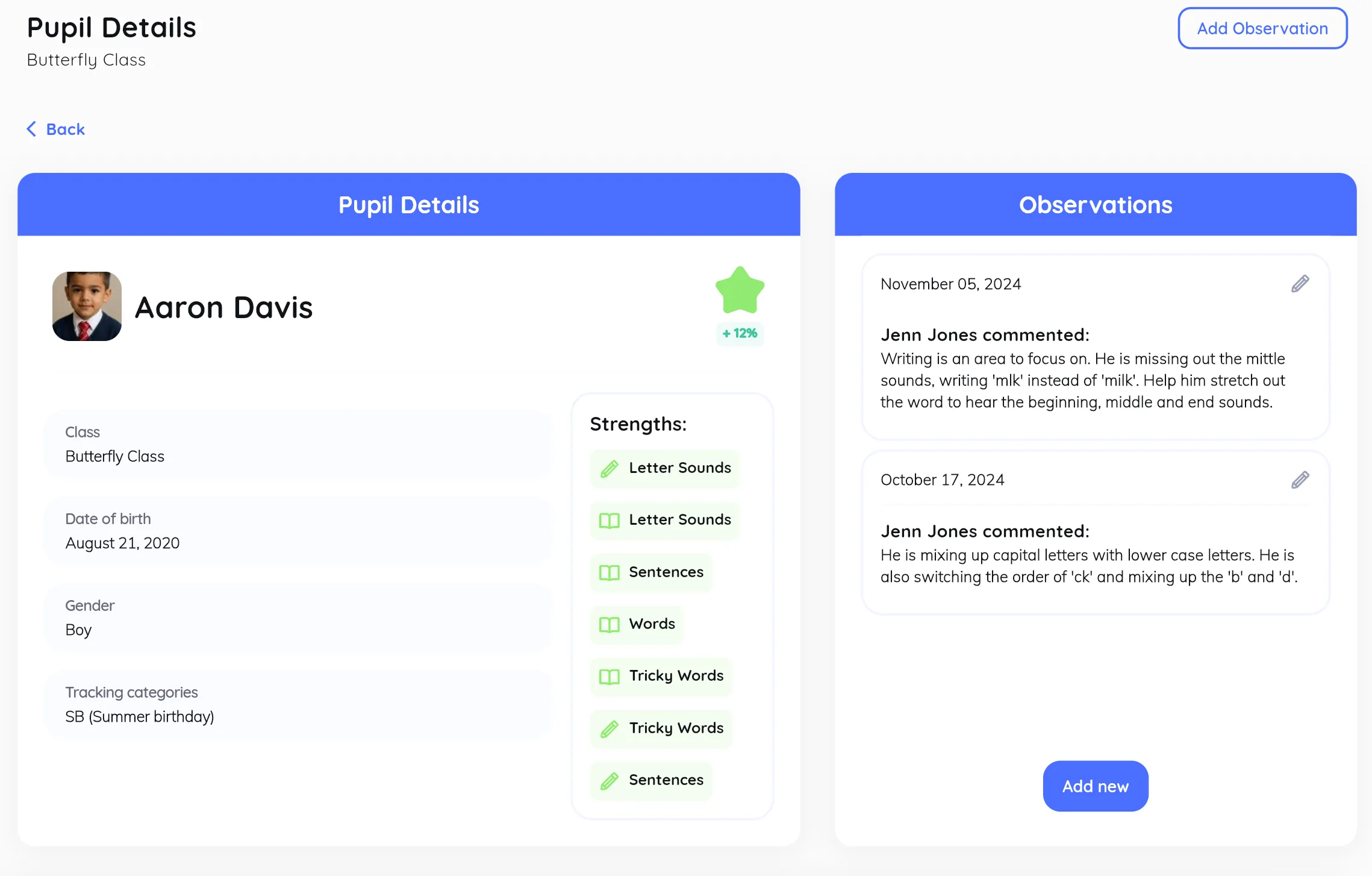
Section titled “View Individual Pupil Data”Clicking on a pupil’s name opens their individual data page. Here, you can see detailed information such as tags, strengths, weaknesses, focus areas, and observations made by the teacher. The ‘Yearly Progress Overview’ chart shows progress across different skills, such as reading and writing.
Analyze Historical Assessments
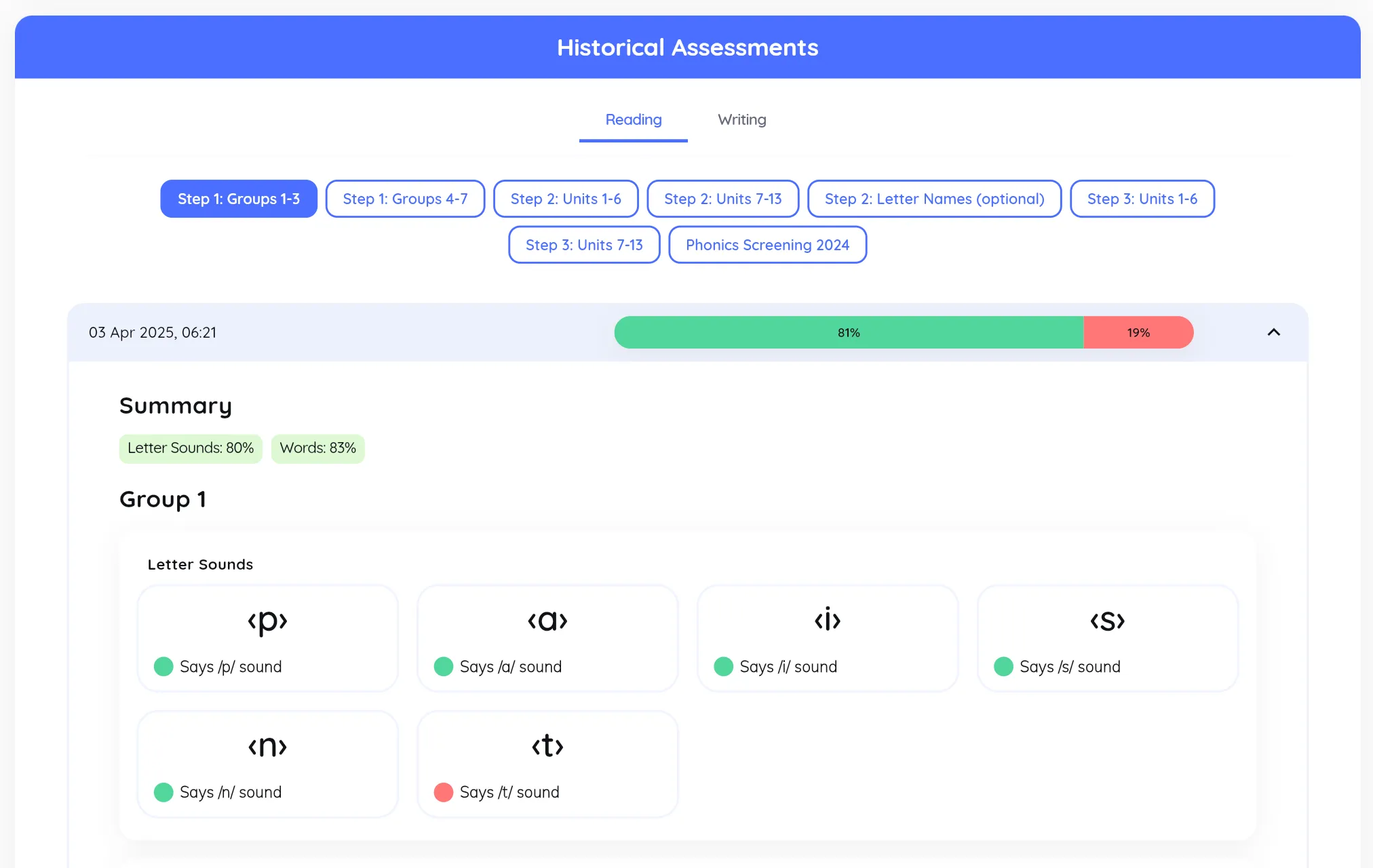
Section titled “Analyze Historical Assessments”Scroll down to the ‘Historical Assessments’ section to view detailed results of past assessments. Each assessment includes a summary of the pupil’s performance and a breakdown of their answers for letter sounds, tricky words, and other categories.
Create Observations
Section titled “Create Observations”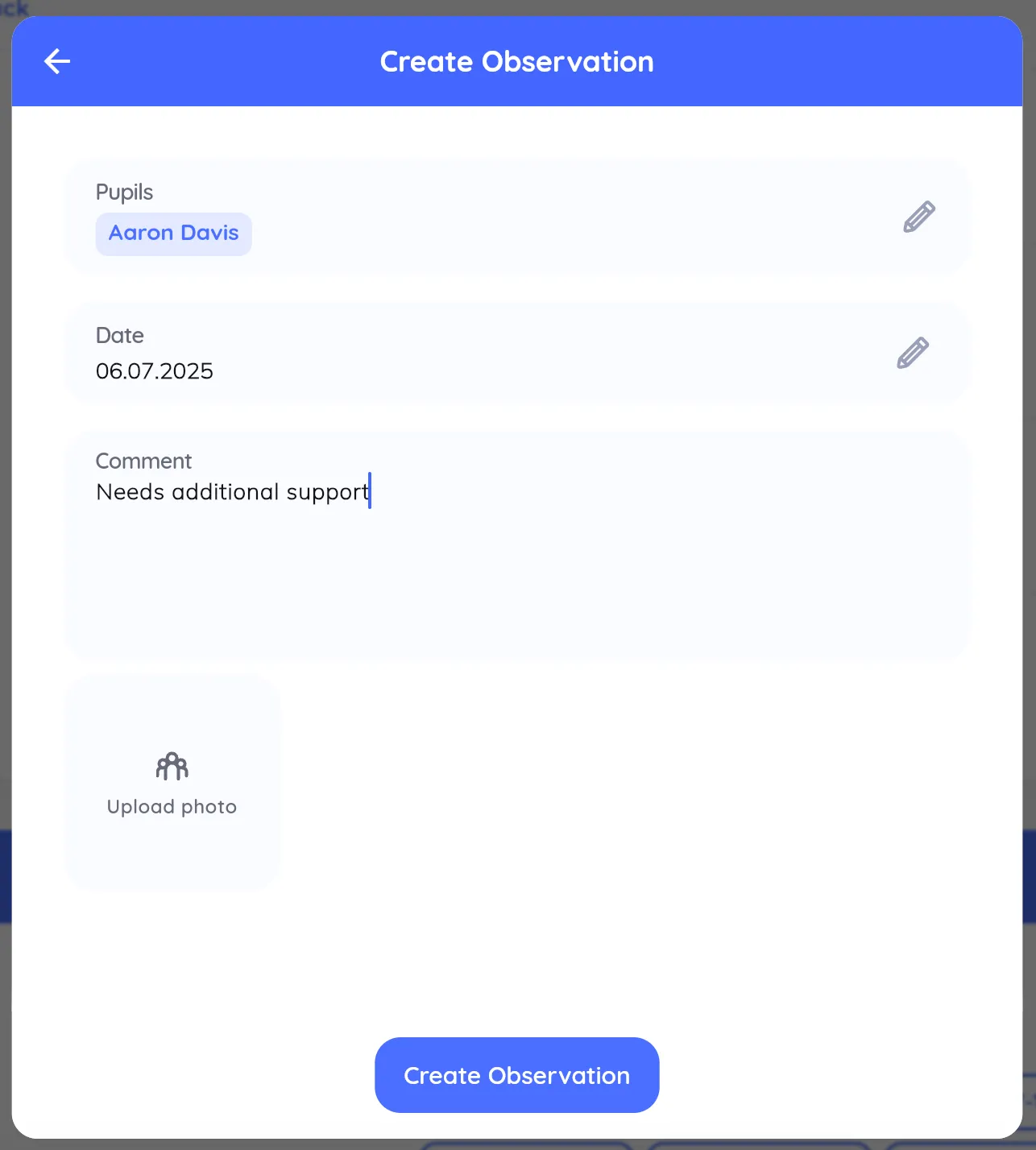
To document specific needs or progress, use the ‘Add Observation’ button. This opens a form where you can enter comments, such as ‘Needs support with Handwriting and letter recognition’, and upload photos if necessary. Observations are valuable for writing reports or meeting with parents.